Start with the debug panel
Add ?pendling_debug=1 to your page's address (for example yourshop.com/?pendling_debug=1). A small panel lists what Pendling loaded, which campaign it chose, why each other campaign was skipped, and every event it sent. It stays on for that browser tab; ?pendling_debug=0 turns it off.
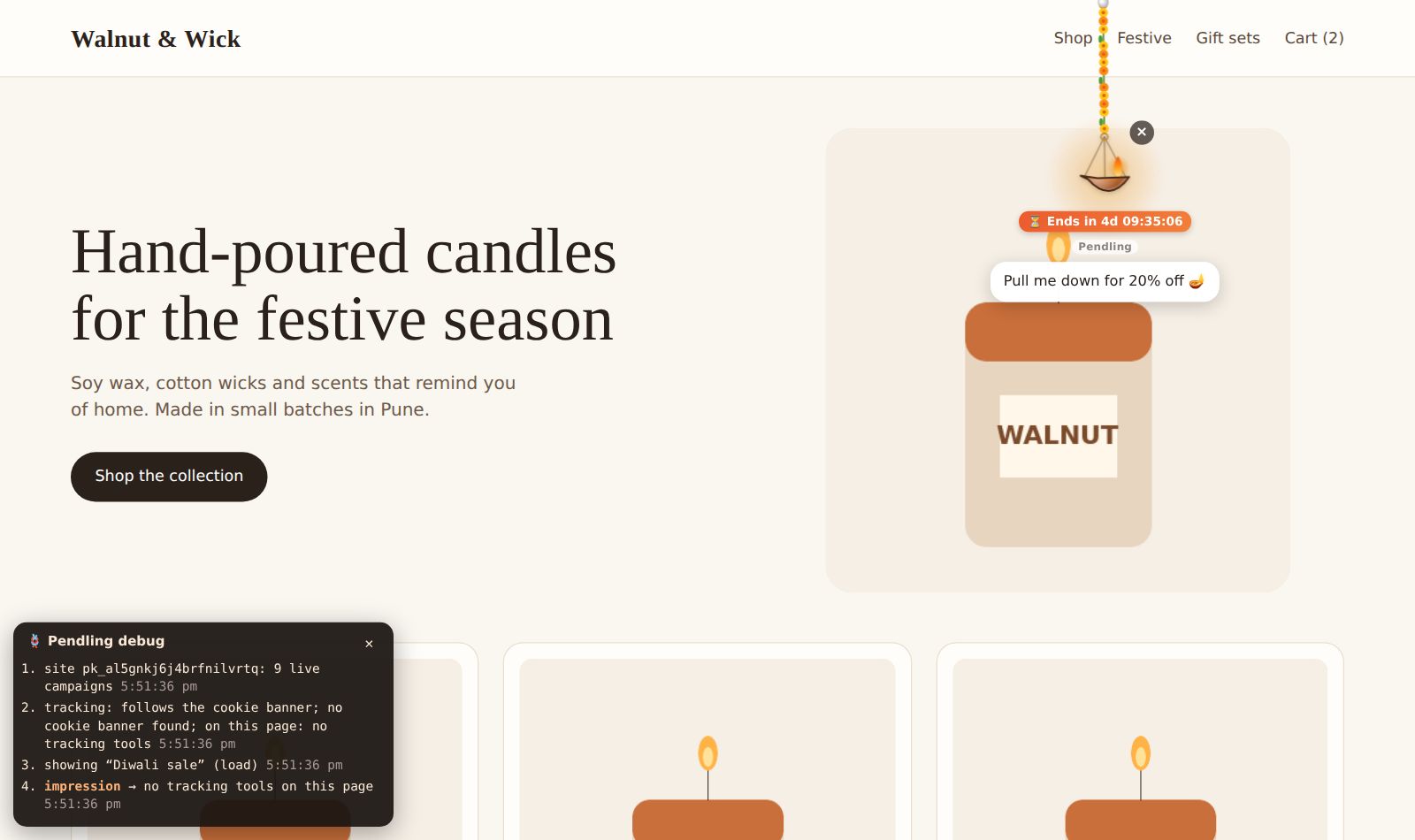
No panel at all? Then the line of code isn't on the page. See the install guides for Shopify, WordPress and other sites.
The checklist
- Is the campaign live? A paused campaign never shows. Check its Starts and Ends too, under Schedule: they're in your own time zone.
- Does this page match? Only on these pages and Never on these pages decide where it hangs.
/products/*means every product page. - Right device? Devices can be phones only or computers only.
- Are you in the audience? Campaigns can be for new or returning visitors only, some countries, some browser languages, some hours or days, visitors from a marketing campaign, or carts over an amount. The debug panel names the one that left you out.
- Have you already seen it, or closed it? With Show it at most … times, it stops once you've seen it enough; once closed, it can stay away for a while. Games and gift picks are once per visitor. A private window starts fresh.
- Does it wait for something? A charm can drop in after a few seconds, after scrolling, or only when a visitor is leaving.
- Is another campaign first? On each page, the first live campaign that fits is the one that hangs. Drag campaigns in the list to set the order.
- Over your plan? After a plan's page views run out, campaigns keep showing for 7 more days, then pause until the month ends. Live campaigns beyond your plan's limit show Not showing: over your plan.
My changes don't appear
Saved changes reach your site within a minute. If your site uses a page cache (a WordPress caching plugin, or a CDN), clear it once after adding the line of code. After that, Pendling's changes don't need it.
Still stuck? Email us your site's address and the campaign's name, and we'll look.