Paste one line into your theme
- In your Shopify admin, go to Online Store → Themes, press ⋯ next to Customize, then Edit code.
- Open layout/theme.liquid.
- Paste your line just above
</body>, then press Save.
<script src="https://app.pendling.app/v1/pendling.js" async data-site="YOUR-SITE-KEY"></script>Your own line, with your site key in it, is in the dashboard under Install (and in the install step of setting up a site). Copy it from there rather than from this page.
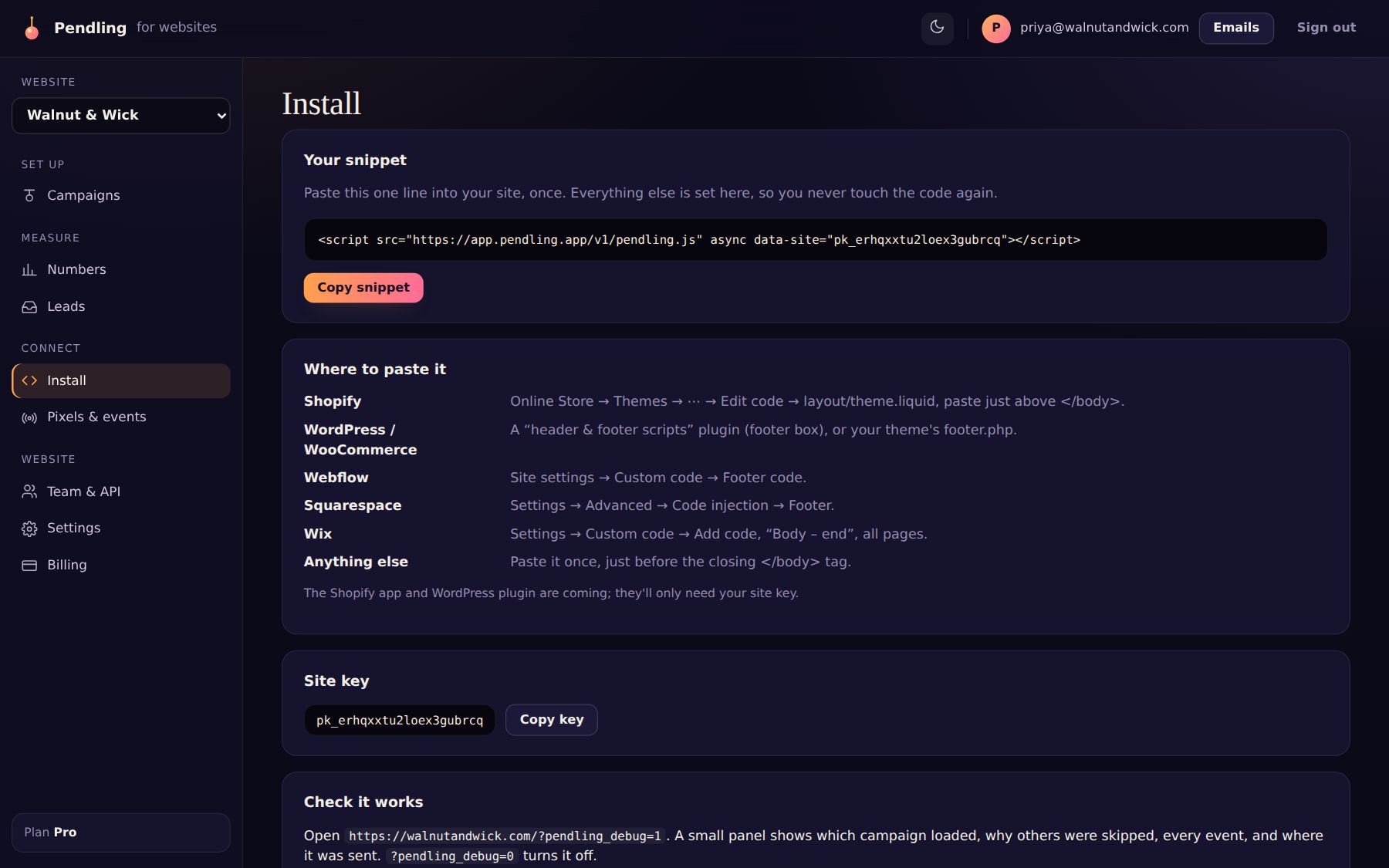
That's all: every campaign, coupon, form and game is then set up in the dashboard, and changes reach your store within a minute.
The Pendling app for Shopify (coming soon)
The Pendling app will do the same with no code, as a theme app embed you switch on under Online Store → Themes → Customize → App embeds. It also:
- creates the Shopify discounts behind your coupon codes and keeps them in sync;
- gives each visitor their own single-use code if you like (Pro);
- lets you pick products from your store for product cards, with an Add to cart button (see Suggest a product);
- tells Pendling the kind of page and the cart total, for targeting and free-shipping progress;
- counts revenue from orders that used a campaign.
When it's out, remove the line from your theme before switching the app embed on, so the charm doesn't load twice.
Check it's live
Until your store sends its first page view, your site's page in the dashboard shows Finish setting up. To see what's happening on any page, add ?pendling_debug=1 to its address. More in The charm isn't showing.