Your campaigns
Campaigns lists everything on your site. Each row shows what it does, whether it's Live, and its schedule. Duplicate makes a copy to start from; + New campaign starts from a template or blank.
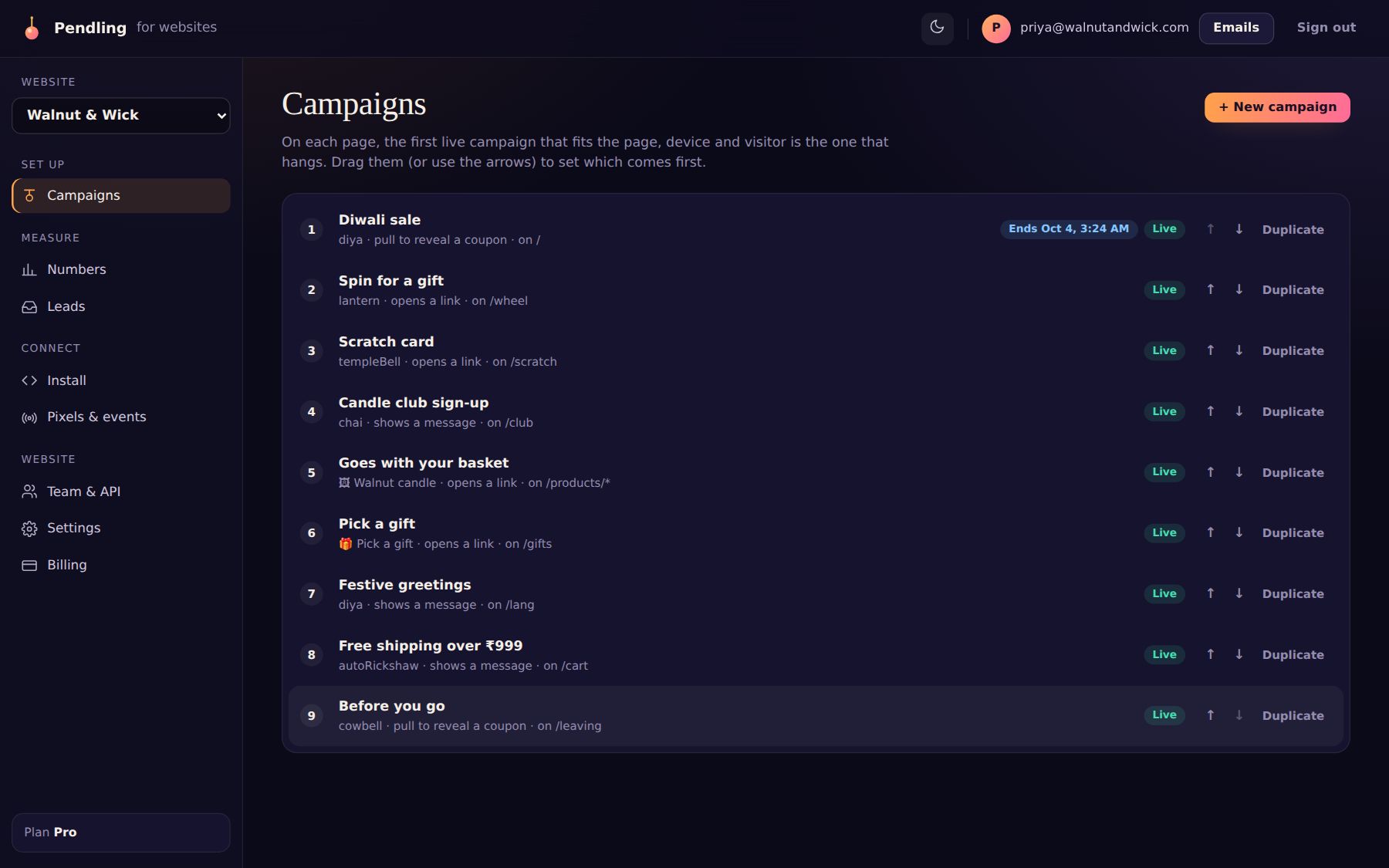
Order matters. On each page, the first live campaign that fits the page, the device and the visitor is the one that hangs. Put specific campaigns (a product page upsell, an exit offer) above general ones (a site-wide hello).
The designer
Open a campaign to design it. The settings are on the left, and a live preview on the right: fling it, poke it, pull it. Switch the preview between Desktop and Phone. The switch at the top turns the campaign Live, and Save changes sends your changes to your site within a minute.
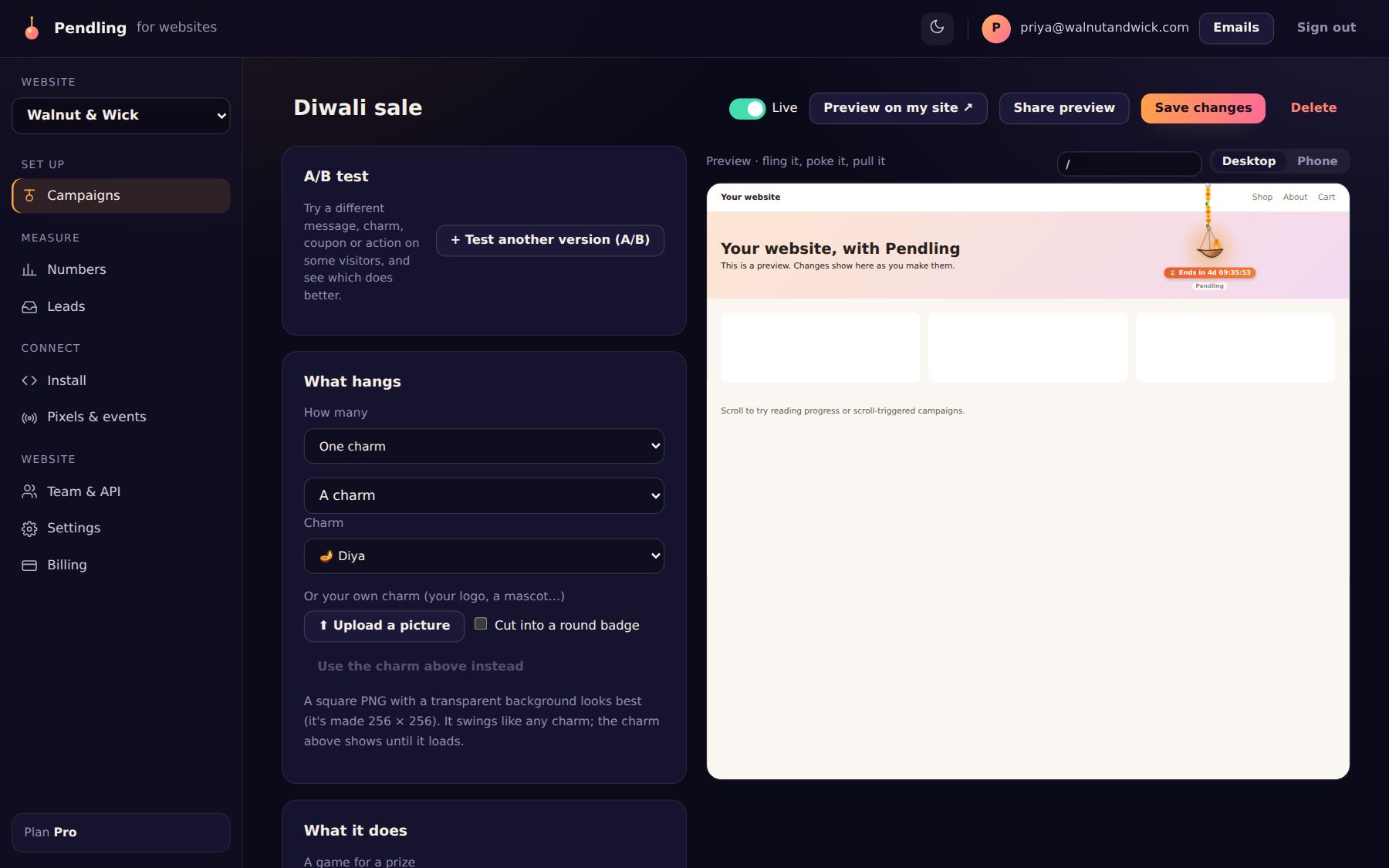
The sections
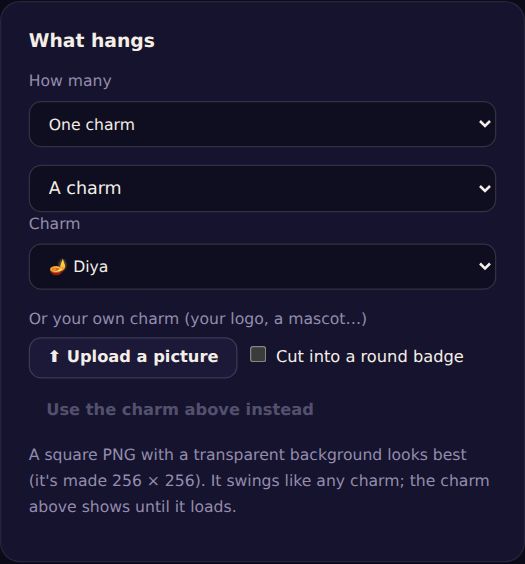
- What hangs: one charm or several (layouts), which charm, or your own picture (a logo or mascot; a square PNG with a transparent background looks best, 256 × 256), or a product picture.
- What it does: open a link, show a message with a button, reveal a coupon when pulled down, burst a coupon out of a piñata, or play a game for a prize.
- Free-shipping progress: the charm climbs as the cart fills (guide).
- Collect leads: an email or phone form, and a one-question poll (guide).
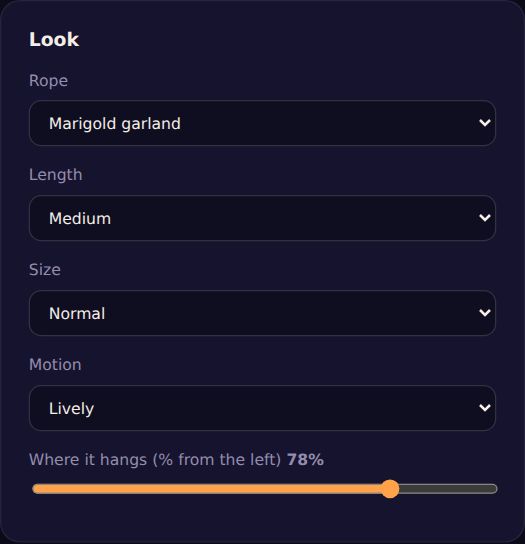
- Look: the rope, its length, the charm's size, how lively it moves, and where it hangs across the page.
- When and where, Schedule and Who sees it: pages, devices, moments, dates and audiences (guide).
- Languages: the campaign's words in other languages (guide).
- Extras: festival days, reading progress, a last word when visitors leave, closing, and bell sounds.
Tip: the preview is the real widget, so what you see is what visitors get. Use Preview on my site to see it on your actual pages before going live (guide).